Have you ever watched a video and seen the message “slide left or right to seek”? You may have wondered what it means or what you should do next. This message often appears in video players, streaming apps, and other media apps. It can confuse people who are not familiar with the word “seek” in this context.
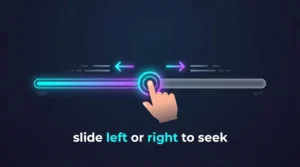
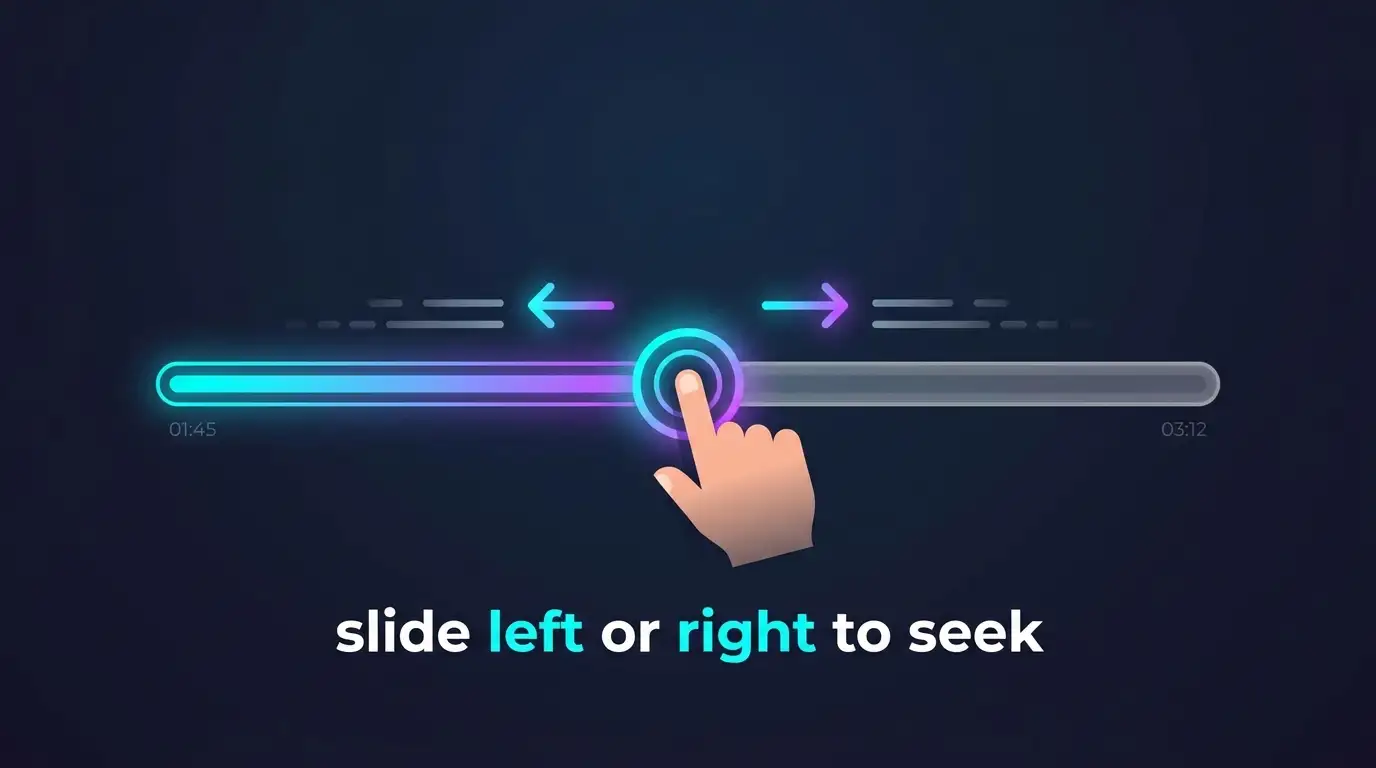
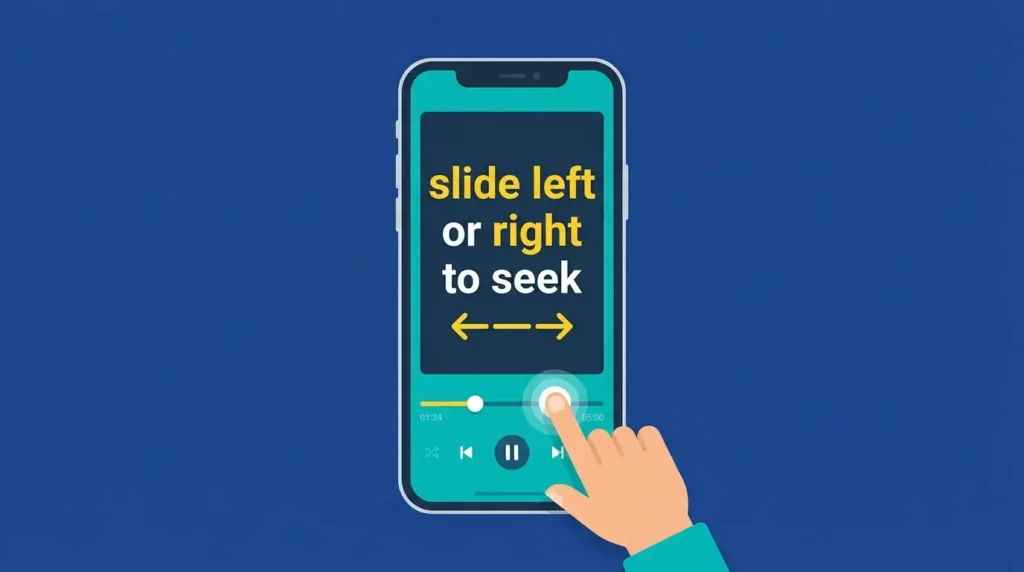
The phrase is an instruction. It tells you to move your finger left or right on the screen to move through a video or audio track. If you slide to the right, you usually move forward. If you slide to the left, you usually move backward. This lets you skip parts you do not want to watch or listen to again.
The exact action may depend on the app you are using. Some apps let you drag a progress bar, while others use a swipe gesture. You may also need to touch and hold the screen before sliding.
In this guide, you will learn what “slide left or right to seek” means, how to use the gesture, and how it differs from similar instructions. You will also find simple examples, common mistakes, and answers to frequently asked questions.
Slide Left or Right to Seek: Quick Answer
“Slide left or right to seek” means move your finger horizontally across the screen to change your position in a video or audio track.
- Slide right: Usually moves forward in the video or audio.
- Slide left: Usually moves backward.
- Seek: Move to a different point in the media.
For example, if you are watching a 20-minute video and want to jump to the 15-minute mark, you may be able to slide right to move closer to that point.
The gesture can work differently across apps. Follow the on-screen guide or check the app’s instructions if sliding does not work.
The Origin of “Slide Left or Right to Seek”
The phrase comes from the way people control videos and other digital media. To understand it, it helps to look at two words: “slide” and “seek.”
- Slide: To move smoothly across a surface. On a phone, this means moving your finger across the screen.
- Seek: To look for or move toward something. In a video player, it means moving to a chosen point in the video.
The phrase combines these actions into one short instruction. It tells users how to change the playback position.
How did the phrase become popular?
The wording became familiar through video player controls, including YouTube’s mobile app. In 2021, reports described a YouTube gesture that let users touch and hold the video, then move their finger left or right to skip through it. The message “Slide left or right to seek” appeared when the gesture started.
Android Central
+1
The idea was simple. Users no longer had to find the progress bar before moving through a video with this gesture.
Today, video players may use similar controls, but the exact steps can differ by app and device. The phrase is best understood as a screen instruction, not a traditional saying or a spelling choice.
British English vs American English Spelling
There is no British-versus-American spelling difference in “slide left or right to seek.” The words are spelled the same way in both forms of English.
Some English words change spelling across regions. For example, American English uses “color,” while British English usually uses “colour.” However, the phrase in this article does not follow that pattern.
| Word or phrase | American English | British English |
| Slide | Slide | Slide |
| Left | Left | Left |
| Right | Right | Right |
| Seek | Seek | Seek |
| Slide left or right to seek | Same spelling | Same spelling |
Why does “seek” fit this instruction?
“Seek” means to look for something or try to find it. In a video player, you move through the timeline to find a certain moment.
For example:
- “Seek to the start of the song.”
- “Move the slider to seek to the next scene.”
- “Slide left or right to seek.”
The final example is an instruction for the user. It tells you how to move through the media.
Is “slide” different from “swipe”?
The two words are close in meaning, but they can describe slightly different actions.
- Slide: Move your finger across the screen while keeping it in contact.
- Swipe: Make a quick movement across the screen.
- Drag: Touch an item and move it to another place.
- Seek: Change the point where a video or audio track plays.
An app may use these words in different ways. The important thing is to follow the instruction shown on your screen.
Which Spelling Should You Use?
You do not need to choose between British and American spelling for this phrase. Use “slide left or right to seek” when describing the instruction shown in a video player.
Your audience may affect how you explain the phrase, though.
For a US audience
Use simple wording such as:
“Touch and hold the video, then slide your finger left or right to move through it.”
This gives readers a clear action to follow.
For a UK or Commonwealth audience
The same wording works in the UK, Pakistan, Australia, and other English-speaking regions. There is no need to change the spelling.
You may use “mobile phone” instead of “cell phone” if that better fits your audience.
For a global audience
Keep the instruction short. Explain that moving left usually takes the viewer backward, while moving right usually takes the viewer forward.
Avoid assuming every app uses the same gesture. Some players require you to move a progress bar instead. YouTube’s official help page explains seeking through its progress bar and scrubber controls.
YouTube Help
Common Mistakes with “Slide Left or Right to Seek”
People may misunderstand this instruction because the word “seek” has several meanings. Here are common mistakes and how to avoid them.
1. Thinking “seek” means search the internet
In daily English, “seek” can mean to look for something. In a video player, however, it means moving to another point in the media.
Incorrect understanding: The app wants you to search for a website.
Correct understanding: The app wants you to move forward or backward in the video.
2. Moving your finger up or down
The instruction says left or right. These are horizontal directions.
What to do: Keep your finger moving sideways across the screen. Vertical gestures may control brightness or volume in some video players.
VideoLAN Documentation
+1
3. Releasing your finger too soon
Some players need you to touch and hold the screen before sliding. A quick tap may not start the seek gesture.
What to do: Touch and hold the video, wait for the instruction if it appears, and then move your finger left or right.
4. Assuming every app supports the gesture
Not all video players use the same controls. Some have a progress bar, while others support horizontal swipes.
What to do: Check the app’s controls or help page if the gesture does not work.
5. Confusing seeking with playback speed
Seeking changes the point where a video plays. Playback speed changes how fast the video plays.
For example, jumping from minute 2 to minute 8 is seeking. Watching a video at twice its normal speed is changing playback speed.
6. Assuming left always means the same thing in every app
For a typical timeline, left moves backward and right moves forward. However, controls can vary by app, device, and screen layout.
Check the preview or time indicator to make sure you are moving to the correct point.
“Slide Left or Right to Seek” in Everyday Examples
This phrase is most common in digital media instructions. It is not a phrase people usually use in formal letters or news reports unless they are explaining a feature.
1. In a video app
You open a video and see the message “Slide left or right to seek.”
You touch the screen and move your finger to the right. The preview moves to a later part of the video.
Meaning: You are moving forward through the video.
2. In a music player
You are listening to a long recording and want to hear the next part.
You move the playback control to a later point in the track.
Meaning: You are seeking forward in the audio.
The exact gesture depends on the music app.
3. In a text message
A friend asks how to skip a long video.
You reply:
“Touch and hold the video, then slide left or right to seek.”
Meaning: You are explaining how to move through the video.
4. On social media
A person shares a tip about finding a scene in a long clip.
They write:
“Use the seek control to find the part you want to watch.”
This explains the same idea without using the full on-screen instruction.
5. In a news article
A technology writer might explain a new video feature like this:
“The player displays a prompt that tells users to slide left or right to seek through the video.”
Here, the phrase describes how the feature works.
6. In a help guide
A support page might say:
“Touch and hold the video. When the seek prompt appears, slide your finger left or right.”
This is a clear way to explain the steps to a new user.
7. In formal writing
If you are writing a user manual, use the phrase as an instruction and explain it the first time.
For example:
“Touch and hold the video, then slide left or right to seek to another point in the recording.”
This is clearer than using technical terms without explaining them.
“Slide Left or Right to Seek”: Google Trends and Usage Data
People may search for this phrase after seeing it on their phone or while trying to understand a video control. However, its exact popularity by country cannot be confirmed without reliable search data.
It is important not to confuse a search query with a common English phrase. This wording is mainly an interface instruction. People may search for it because they want to know what the message means, how the gesture works, or why it appeared.
Where might people use this phrase?
The phrase is most relevant to:
- YouTube and other video platforms
- Mobile video players
- Streaming and media apps
- Help guides about screen gestures
- Searches about skipping or rewinding videos
These are relevant contexts, not a verified ranking of popularity by country.
How can you check its search interest?
You can compare the exact phrase with related searches in Google Trends.
Try comparing:
- “slide left or right to seek”
- “how to seek on YouTube”
- “how to skip through a video”
- “video swipe controls”
Set the location to a country such as the United States, United Kingdom, or Pakistan. Then choose a suitable time range.
Keep in mind that Google Trends shows relative search interest, not the exact number of searches. A low or missing result does not prove that nobody searches for the phrase.
You can also check Google’s official YouTube Help pages for current instructions about seeking and moving through video chapters.
YouTube Help
Comparison Table: Similar Video Controls
The following table explains the difference between “slide left or right to seek” and other common video instructions.
| Phrase | Meaning | Example |
| Slide left to seek | Move to an earlier point | Return to the start of a scene |
| Slide right to seek | Move to a later point | Skip ahead in a video |
| Tap to pause | Stop playback for a moment | Pause a tutorial |
| Double-tap to skip | Jump forward or backward by a set amount in supported apps | Skip a short section |
| Drag the progress bar | Move the playback marker | Jump to minute 10 |
| Change playback speed | Make the video play faster or slower | Watch at 1.5× speed |
| Go to the next chapter | Jump to another marked section | Open the next part of a lesson |
These controls are related, but they do not all perform the same action. The app decides which gestures are available and how they work.
Frequently Asked Questions
1. What does “slide left or right to seek” mean?
It means moving your finger horizontally across the screen to change the playback position in a video or audio track. Moving left usually takes you backward, while moving right usually takes you forward.
2. Why does YouTube show “slide left or right to seek”?
The message tells you that a seeking gesture is available or has been triggered. It helps you understand that you can move through the video by sliding your finger. The exact controls may vary with the app version and device.
3. How do I use the slide-to-seek gesture?
If your player supports it, touch and hold the video screen. Then slide your finger left or right. Watch the time indicator or preview to find the part you want. Release your finger when you reach the right point.
4. Does sliding right fast-forward a video?
Usually, yes. Sliding right often moves you to a later point, and sliding left moves you to an earlier point. The exact response depends on the video player.
5. Is seeking the same as skipping?
They are related but not identical. Seeking means moving to another point in the video. Skipping often means jumping past a section, such as an advertisement or an introduction.
6. Can I use this gesture on a computer?
It depends on the player. Some computer players support mouse gestures, but many use a progress bar, keyboard shortcuts, or other controls. Follow the instructions for your specific app.
7. Is “slide left or right to seek” different in British and American English?
No. The spelling and basic meaning are the same in both forms of English. It is a digital instruction, not a word pair with regional spelling differences.
Conclusion
“Slide left or right to seek” is a simple instruction used in video and media controls. It tells you to move your finger sideways to change where a video or audio track plays. Sliding left usually moves backward, while sliding right usually moves forward.
The word “seek” can mean to look for something in everyday English. In a media player, it has a more specific meaning: moving to a chosen point in a recording. This is why the phrase may seem confusing if you have not used the feature before.
The wording became familiar through video player gestures, including those reported for YouTube. However, not every app supports the same method. Some ask you to touch and hold the screen, while others use a progress bar or a different gesture.
There is also no British or American spelling difference to worry about. The phrase uses the same words in both forms of English. If you see this message, follow the on-screen guide and watch the time or preview as you move. This will help you reach the part you want without guessing.

Ethan Carter is a language writer at Wordellect who helps readers understand word differences, grammar rules, and spelling variations through simple and accurate guides.