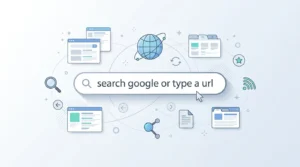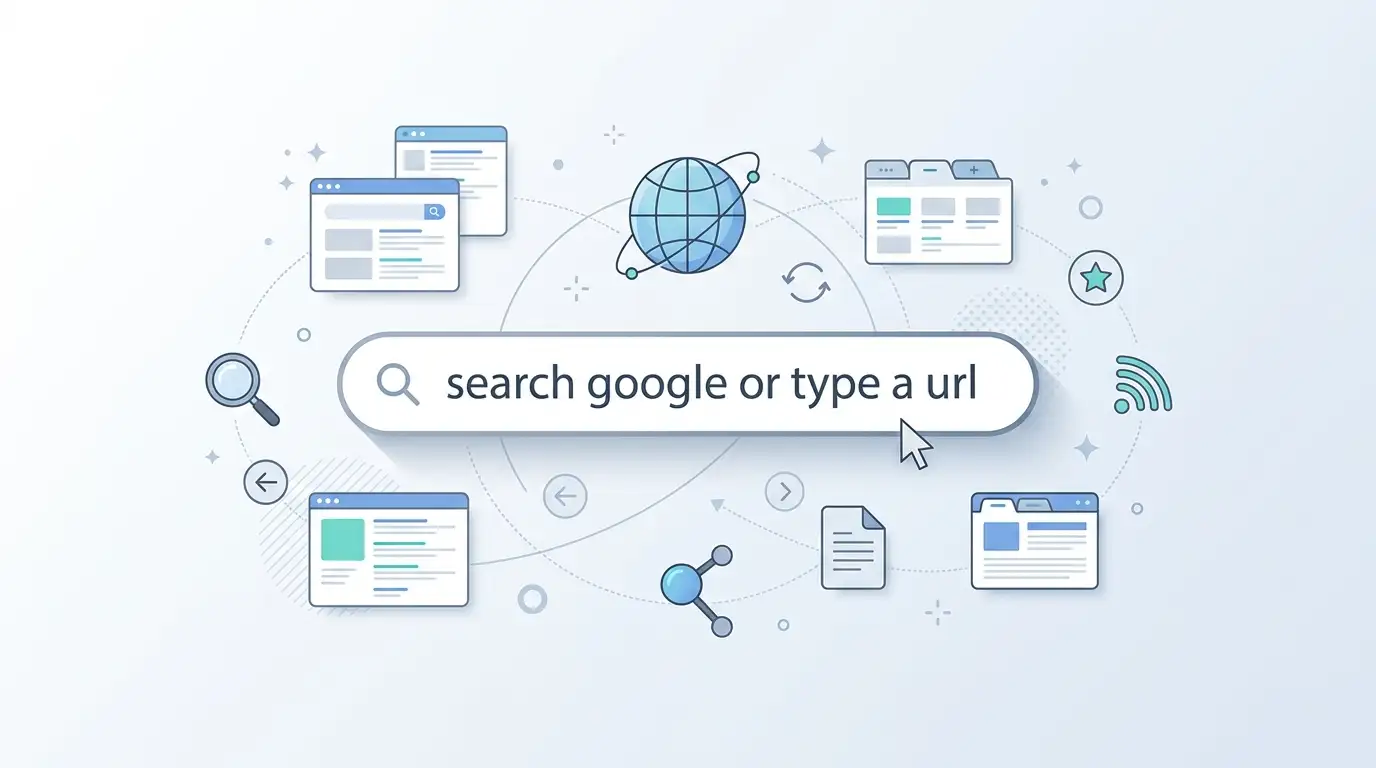
When you open Google Chrome, you may see the words “Search Google or type a URL” inside the address bar. If you are not sure what this message means, there is no need to worry. It is a normal prompt that tells you how to use the bar.
The message means you can use the same bar to search Google or open a website directly. Type a question or a few words to search for information. Type a website address, such as wikipedia.org, to visit that site.
You do not need to choose between search and web address before typing. Chrome uses what you enter to decide what action to take. This makes browsing simple because you can search for new information and visit known websites from one place.
For example, you can type how to convert inches to centimeters to find instructions. If you already know the website you want, you can type its address instead. The message is not an error, a warning, or a sign that your browser is broken.
What Is a URL?
A URL stands for Uniform Resource Locator. In simple words, it is the address used to open a website or a specific page online.
For example:
- google.com opens Google’s website.
- youtube.com opens YouTube.
- wikipedia.org opens Wikipedia.
- https://www.example.com/about points to a specific page on a website.
You do not always need to type the full address with https://. In many cases, entering the domain name is enough.
A search query is different. It describes what you want to find rather than giving the exact address of a page.
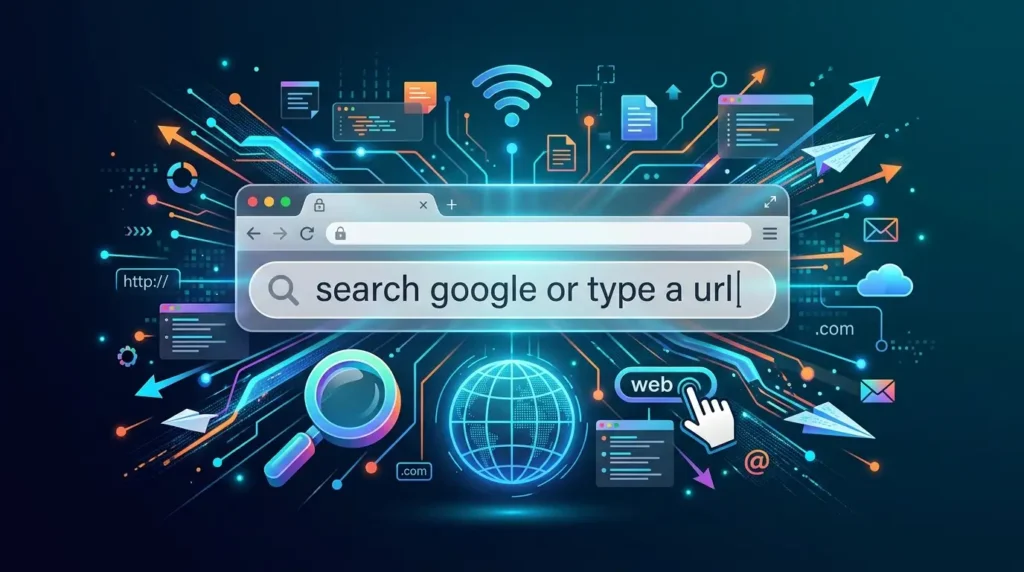
How to Use “Search Google or Type a URL”
You can use this bar in two main ways.
Option 1: Search for information
Use this option when you want to find an answer but do not know which website has it.
- Open Chrome.
- Click the address bar or search box.
- Type your question or topic.
- Press Enter.
- Choose a useful result from the search page.
For example, type how many centimeters are in an inch. Chrome will send the search to your default search engine and show relevant results.
Google Chrome Help
Option 2: Open a website directly
Use this option when you already know the website address.
- Open Chrome.
- Click the address bar.
- Type wikipedia.org.
- Press Enter.
Chrome will try to open the website instead of showing search results for the words you entered.
Always check the address before entering passwords or payment details, especially if you reached a website through a search result.
Search Google vs. Type a URL
The main difference is what you enter and what you want the browser to do.
| Feature | Search Google | Type a URL |
| What you enter | A question or topic | A website address |
| Main purpose | Find information | Open a known website |
| Example | best free photo editor | canva.com |
| Usual result | Search results | The requested website |
| Best time to use it | When you need to find something | When you know where to go |
One detail matters: Chrome uses your default search engine for searches. Google may be the default, but users can choose another search engine in Chrome settings.
Google Chrome Help
Why Does Chrome Show This Message?
The message appears as a prompt in an empty search or address field. It tells you what you can type there.
It is not an error message. You do not need to remove it, download anything, or change a setting just because it appears.
The wording can vary by device, browser version, and search settings. You might see a shorter message such as “Search or type URL.” The basic purpose remains the same.
Is “Search Google or Type a URL” a virus?
No. The message itself is normal browser text and does not mean your computer has a virus.
However, pay attention if something else unusual happens, such as:
- Your searches go to an unfamiliar website.
- Your default search engine changes without your permission.
- Your browser opens strange pages or unwanted pop-ups.
- Your home page changes on its own.
Google notes that an unexpected change to the default search engine may indicate unwanted software. You can check Chrome’s search engine settings and review unfamiliar extensions if this happens.
Google Chrome Help
What If Chrome Searches Instead of Opening a Website?
Sometimes you enter a website name, press Enter, and get search results instead. This can happen if Chrome treats your text as a search rather than a web address.
Try these steps:
- Enter the domain clearly. Type example.com rather than only example.
- Check for typing errors. A misspelled address may not open the intended site.
- Check the suggestions. Chrome may show search suggestions and website addresses as you type.
- Review your search engine. Open Chrome Settings, select Search engine, and check which provider is selected.
- Check for unwanted changes. If the browser keeps redirecting you, review extensions and follow Google’s guidance for unwanted software.
The exact cause depends on what you type and how your browser is set up.
Frequently Asked Questions
What does “Search Google or type a URL” mean?
It means you can use one bar to search the web or visit a website directly. Enter a question to search, or enter a known website address to open it.
Is the address bar the same as the Google search box?
In Chrome, the address bar can do both jobs. It accepts website addresses and search queries. Chrome calls this combined field the omnibox.
Do I need to type “https://” before every URL?
No. Chrome can often open a website when you enter its domain name, such as google.com. Some sites or pages may require a full address or may redirect you to the correct page.
Can I use another search engine instead of Google?
Yes. You can change your default search engine in Chrome settings. The available choices depend on your browser and location.
Google Chrome Help
Why does the message disappear when I start typing?
The words are placeholder text. They appear when the field is empty and disappear when you enter your own text.
Is a URL the same as a search query?
No. A URL identifies the address of a website or page. A search query is the text you enter to find information. For example, bbc.com is a domain, while latest BBC news is a search query.
Final Takeaway
“Search Google or type a URL” is a simple prompt that explains how to use Chrome’s address bar. You can type a question or topic to search the web, or enter a website address to visit it directly.
Use search when you need to find information or discover a useful website. Type a URL when you already know the address and want to go straight there. You can do both from the same field, so there is no need to open a separate search box.
The message is normal and does not mean your browser is broken. If searches begin redirecting to unfamiliar sites or your search settings change without your permission, check your browser settings and extensions.
Once you know the difference between a search query and a URL, the instruction becomes easy to understand and use.

Ethan Carter is a language writer at Wordellect who helps readers understand word differences, grammar rules, and spelling variations through simple and accurate guides.